Pegas Nesting Bridge — 3D Layout Synchronization for Fusion 360
Nesting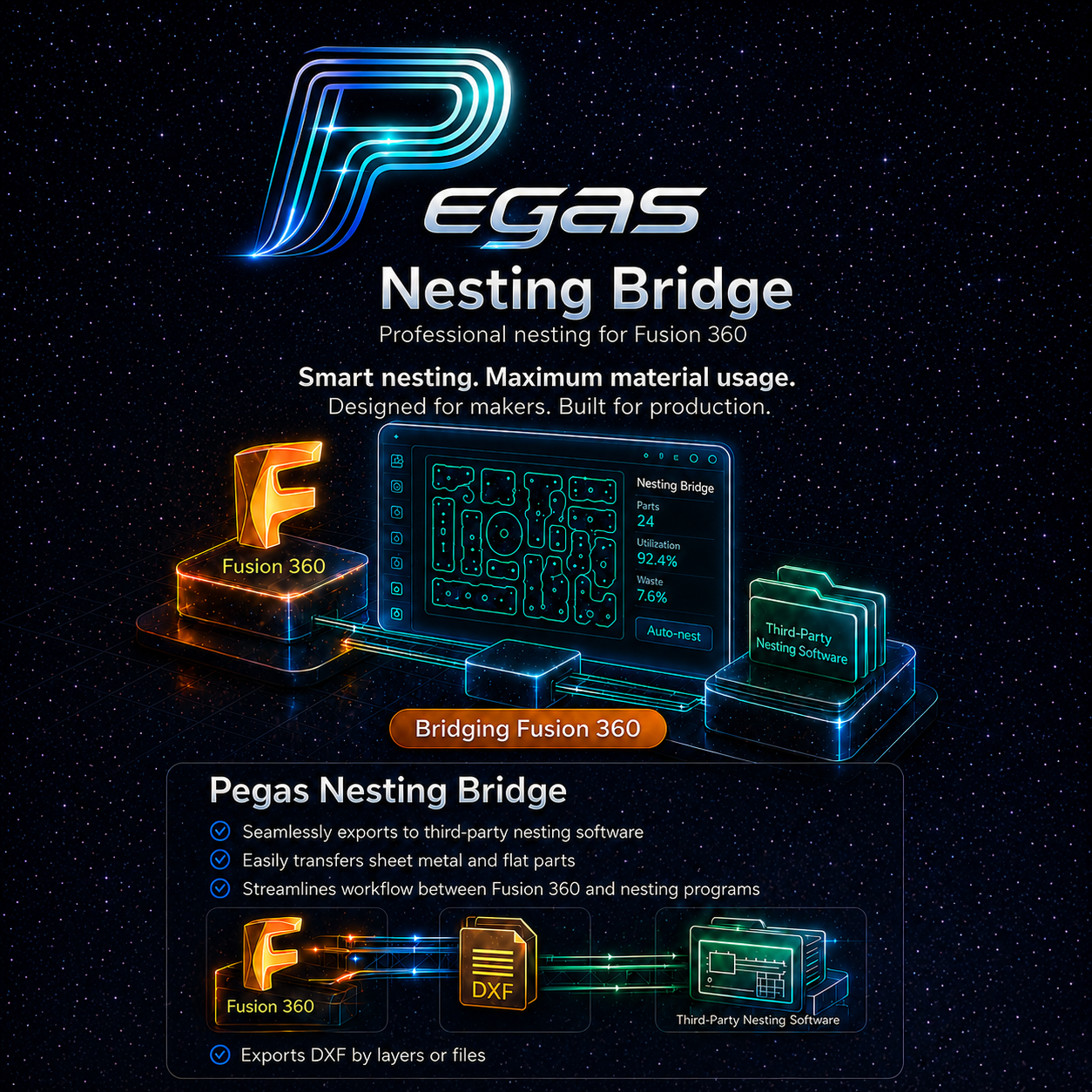
Pegas Nesting Bridge — 3D Layout Synchronization for Fusion 360
The Problem: Rebuilding 3D Assemblies After External Nesting
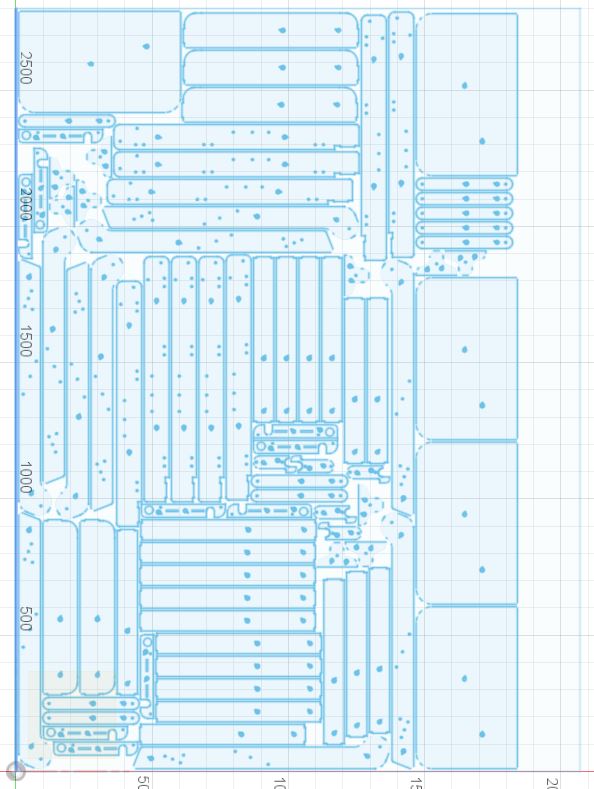
External nesting software (like Deepnest or SigmaNEST) is great for optimizing sheet yield, but it creates a major CAD bottleneck. When you export your parts as 2D DXF outlines, nest them, and import the sheet layout back into Fusion 360, it imports as dead, flat 2D sketches. You must manually drag, rotate, and align every 3D component onto the nested lines, taking hours of tedious work.
The Agitation: Wasted Shop Hours and Alignment Errors
Manually matching 2D nested outlines with their 3D solid counterparts is highly prone to mistakes. Mirroring errors go unnoticed, and parts are cut face-down or upside-down. This manual rebuild blocks CAM programming and halts CNC production, costing you time and materials.
The Solution: Automated 3D Relocation Using Dual-Marker V2
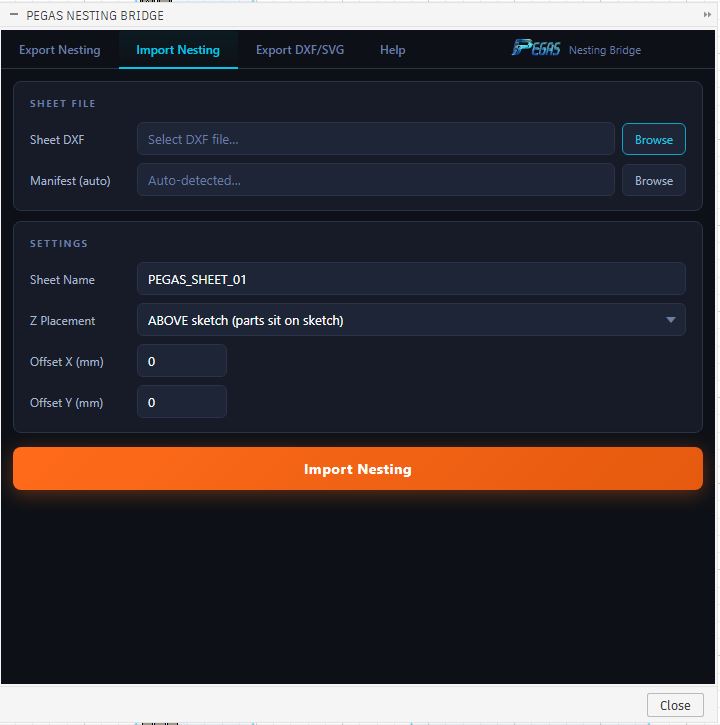
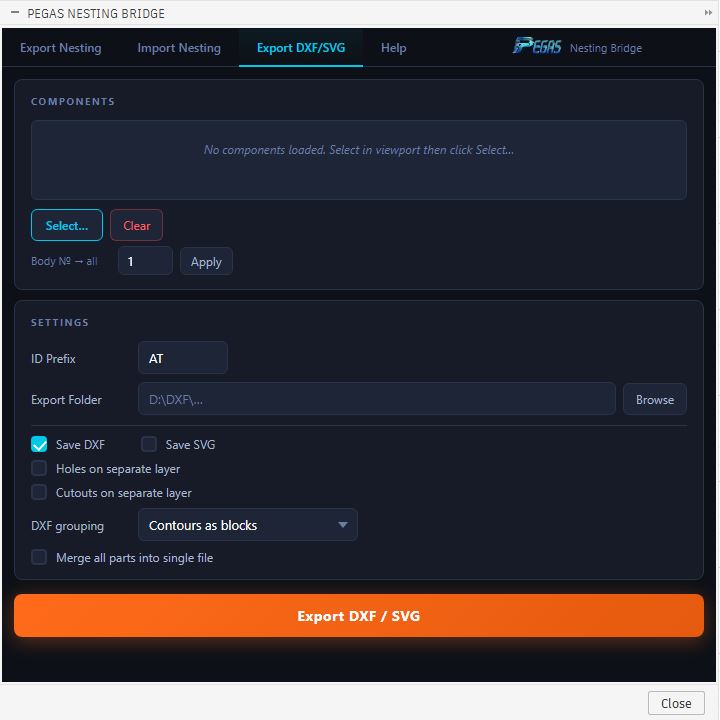
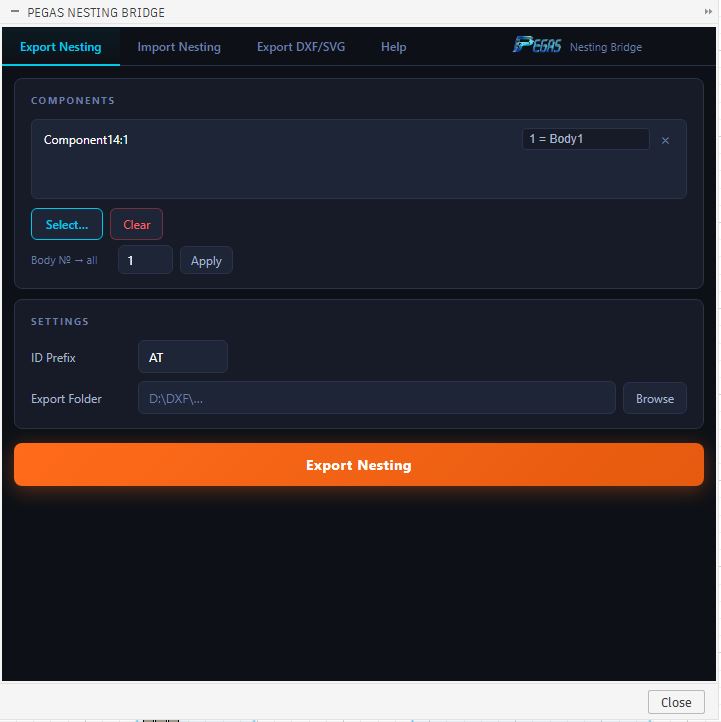
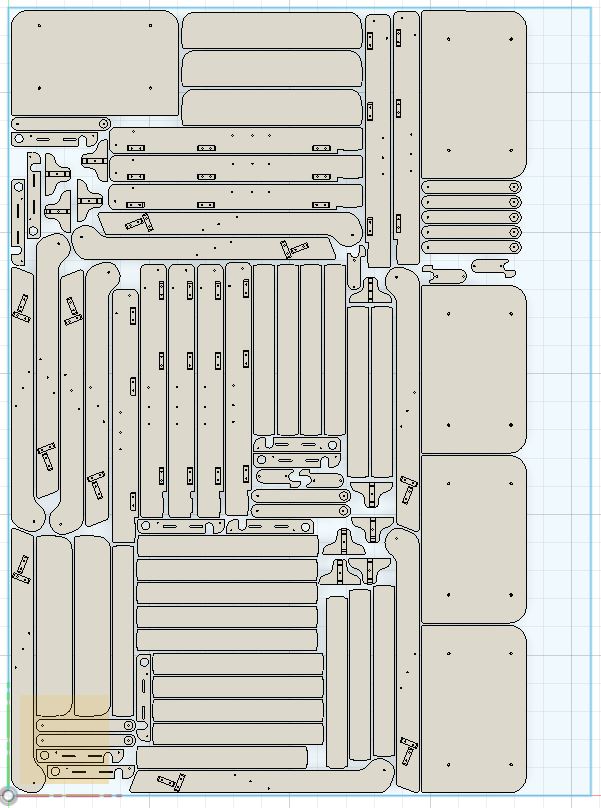
Pegas Nesting Bridge bridges this gap. The add-in embeds unique coordinate tracking markers into your parts during export. After you run your nest, the plugin reads the sheet layout and automatically repositions nested parts automatically in Fusion 360. Your original 3D components snap and rotate onto the nested sheet in 5 minutes, fully preserving your CAD assembly properties and CAM setups.
High-Performance Nesting Sync Features
🌉 Nesting Bridge Dual-Marker System
- Feature: Places coordinate tracking tags on exported outlines and reads them back.
- Advantage: Resolves part rotation, mirroring, and placement coordinates automatically.
- Benefit: Keeps 3D models linked to their nested outlines, avoiding manual placement.
🌉 Deepnest External Layout Reimport
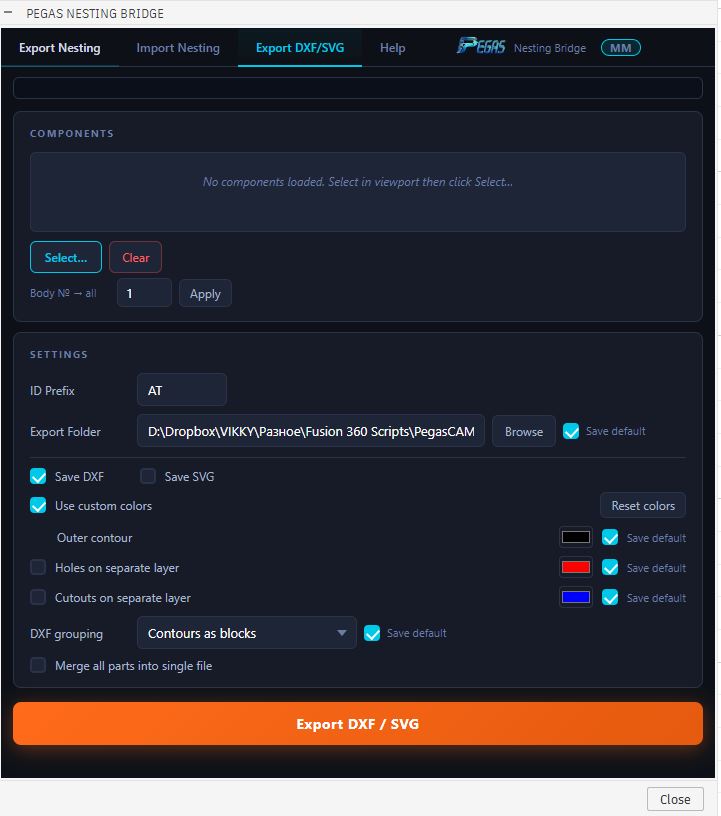
- Feature: Re-aligns Fusion 360 models using DXF or SVG sheet inputs.
- Advantage: Supports sheet imports from all major nesting programs.
- Benefit: Combine the powerful nesting efficiency of specialized programs with the full parametric modeling power of Fusion 360.
🌉 Dynamic CAM Link Preservation
- Feature: Relocates components without deleting or replacing them.
- Advantage: Ensures all previously defined CAM toolpaths stay locked to the bodies.
- Benefit: Regenerate your sheet toolpaths instantly after nesting without re-selecting geometries.
Case Study: Re-importing 40 Nested Parts in 5 Minutes
- Before: A woodworking facility spent 45 minutes manually aligning 40 plywood cabinet components onto a nested layout outline imported from Deepnest.
- After: By using Pegas Nesting Bridge, they completed the deepnest external layout reimport and snapped all 40 3D solid parts to their nesting sheet layout in 5 minutes.
- Bridge: Dual-Marker tracking automates 3D relocation, linking CAD assemblies directly to nested layouts.