Pegas G-Code CAM Editor
Why a Dedicated G-Code Editor?
CAM software generates toolpaths, but real workshops constantly need to tweak the output: add holding tabs, move entry points away from critical edges, flip climb/conventional on specific contours, or adjust pass depth. Doing this in Notepad is fragile; regenerating in CAM means losing manual adjustments. Pegas G-Code CAM Editor solves this gap.
Core Features
Parse & 2D Visualize
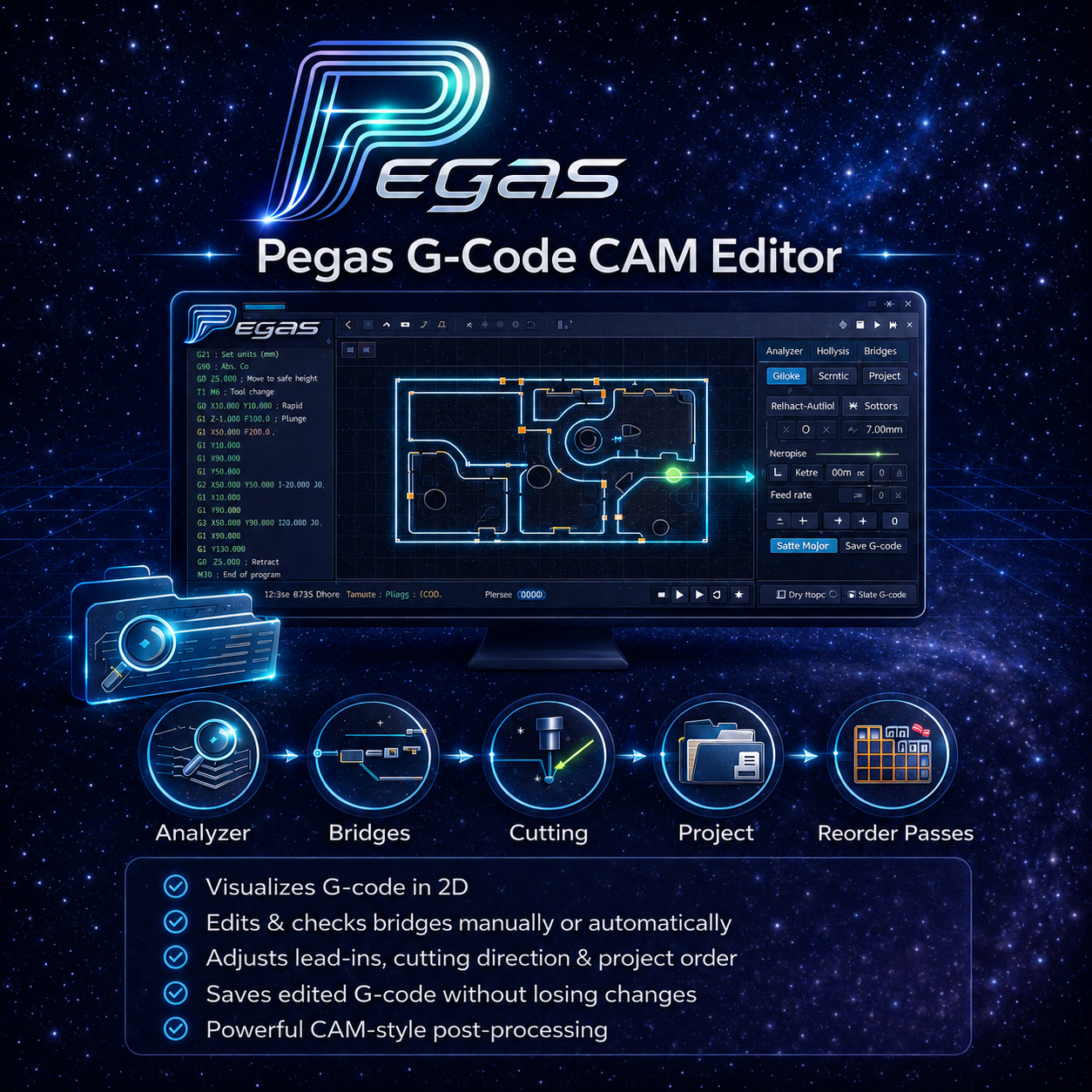
- Opens G-code and builds segment model ??? not text. Full 2D viewer: contours, arcs, entry arrows, rapid G0s, bridge markers, body numbers overlay
- Auto-reads tool diameter, feeds, depth, and stock from G-code
Bridge (Tab) Editor
- Add bridges manually or auto-detect from existing code
- 4 bridge types: 2D tab, 3D peak, 3D trap, 2D drop
- Copy bridge layout to all geometrically similar contours automatically
- CHECK mode: validate minimum bridge count per contour before cutting
- Separate feed, RPM, SafeZ, bottom offset, and CutLen for bridge-cleanup passes
Entry (Plunge) Editor
- Move entry point anywhere on the contour
- Switch entry type: straight, ramp, or arc ??? per contour or globally
- Arc parameters: angle, horizontal/vertical radius, orientation
Cut Direction Control
- Flip G-code cut direction (climb/conventional) in one click
Multi-Pass Support
- Recognises family model: root (bottom) pass is the editable base; upper passes adapt automatically
- Adjust pass count and step-down depth without reprocessing in CAM
Cut Parameters Panel
- Tool diameter ?? Plunge feed ?? Entry feed ?? Cutting feed ?? Spindle RPM ?? Depth ?? Stock ?? Ramp ?? Work envelope X/Y
Project Save & Direct Editing
- Full project saved to .dfproj / .json: G-code lines, bridges, entry states, UI state ??? resume later with no data loss
- Built-in G-code text editor with live viewer sync
- Exports G-code: base passes + bridges + entry patches assembled cleanly
Platform: Windows standalone ??? no Fusion 360 or CAM licence required.
Resources: Documentation | Related Articles | Support
Works Well With
G-Code CAM Editor fits directly into a Fusion 360 workflow: Pegas CAM Contour generates the initial CAM operations inside Fusion 360, then G-Code CAM Editor handles bridges, entry points, and pass count after post-processing — without going back to CAM. If the job comes from a nested sheet, Pegas Nesting manages the Fusion 360 side of the import, while G-Code CAM Editor handles final G-code corrections before the machine.